Bluetooth Scanner Setup
Before a Bluetooth scanner can pair with XL, it needs to be switched into Serial Port Profile (SPP) mode. Scan the configuration barcode for your scanner brand below, then pair the scanner with XL.
Zebra Scanners
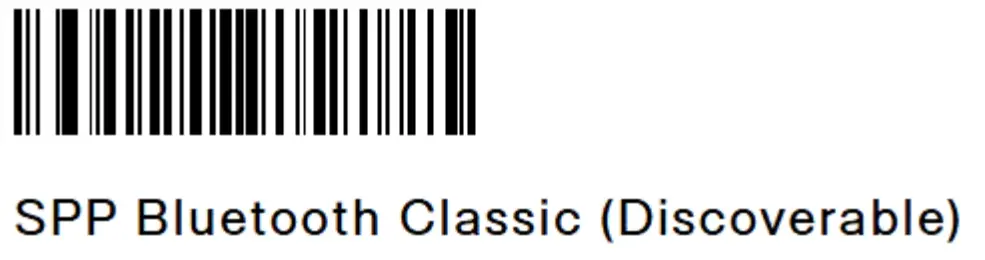
Zebra cordless scanners, including the scanners in our wireless barcode kits, need to be placed in SPP Bluetooth Classic mode before pairing.
Scan the barcode below with the scanner you want to connect. This puts the scanner in discoverable SPP mode so XL can find it.

Pairing a Zebra Scanner with XL
- 1. Power on the scanner and make sure it is charged.
- 2. Scan the SPP Bluetooth Classic (Discoverable) barcode above. The scanner beeps and its LED starts blinking to show it is discoverable.
- 3. In XL, open Settings > Bluetooth and start scanning for devices.
- 4. Select the Zebra scanner from the list of discovered devices and choose Pair.
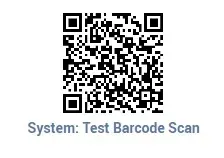
- 5. Scan the test barcode below to confirm the connection. The scanner gives a single beep for a good scan.

If the scanner was previously paired to a computer or cradle in HID mode, scanning the SPP barcode drops that connection. That is expected and no further action is needed.
Datalogic Scanners
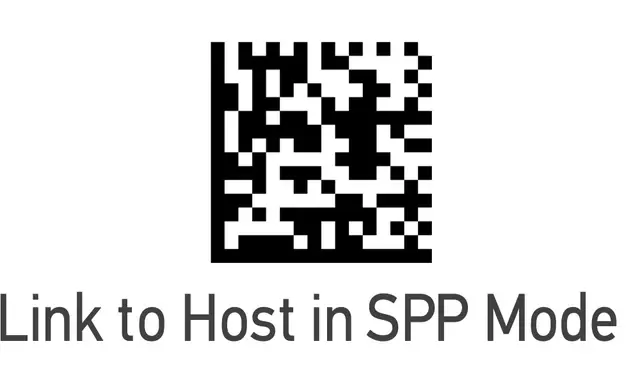
Datalogic cordless scanners also need to be switched into SPP mode before they will connect to XL. Datalogic refers to this as linking the scanner to a host using the Bluetooth Serial Port Profile.
Scan the barcode below with the scanner you want to connect. This makes the scanner visible to XL as an SPP device.

Pairing a Datalogic Scanner with XL
- 1. Power on the scanner and make sure it is charged.
- 2. Scan the Link to Host in SPP Mode barcode above. The scanner beeps to confirm the mode change.
- 3. In XL, open Settings > Bluetooth and start scanning for devices.
- 4. Select the Datalogic scanner from the list of discovered devices and choose Pair.
- 5. Scan the test barcode below to confirm the connection.